Fast-paced arcade bumper car action!
Engine & Language
Unity, C#
My Contribution
UI & Systems programmer
Project Duration
6 Months
Project Link
https://ronanbosman.itch.io/group04-car
GitHub Link
https://github.com/Vincent-VD/Car-Arena-Rumble
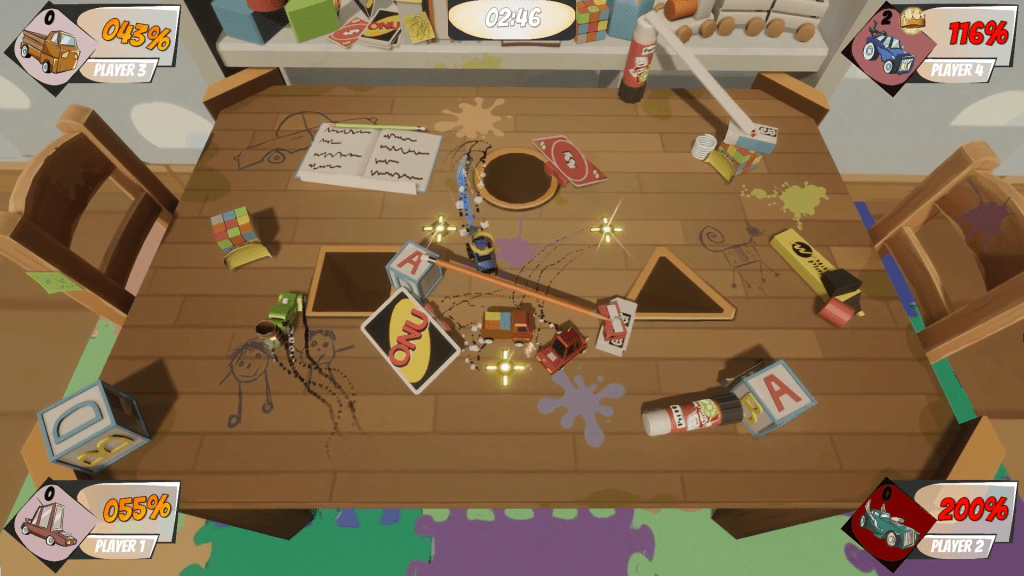
This was a project I made together with several other students as part of the Game Projects course. The theme last year was local multiplayer. The result of our combined brainpower was this game: C.A.R. Car Arena Rumble. The goal of the game is bump other players off the stage as many times as you can. Each time you bump into someone, you take damage, the more damage you have, the more damage you deal, but also the easier it becomes for other players to knock you off the stage. To make your life a bit easier, there are several item spawn points placed throughout the map, which can give you an advantage if used well.
This project had 2 developers: one in charge of the gameloop and me, in charge of the pick-up system, menu and HUD. This project was made in Unity, and thus used C# as its programming language.
Having little experience with C#, or Unity for that matter, I thought that this would prove to be a pretty big challenge. But, though I was met with some pretty large roadblocks along the way, the result was pretty great. The item spawn system went through several iterations, each one being more efficient than the last, until I settled on one. What gave me the most trouble though was the menu system. Having, multiple players join the game, choose a car and color, and then load the main level. making this, I learned a lot about Unity’s Input System, about how it handles UI, and about how to make object persist through level loads.
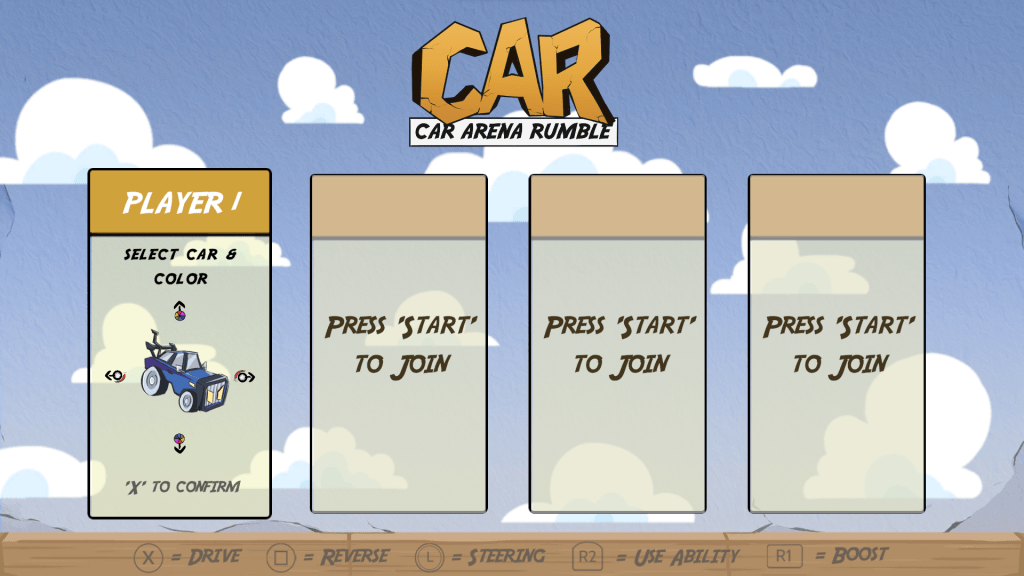
The menu system consisted of several prefab game objects working together, which made designing it quite difficult. When a player pressed the ‘Start’ button on their controller (there is no keyboard support), a struct gets instantiated containing, player id, PlayerInput object, mesh and material id and RumbleBehavior (for custom rumble patterns). This struct gets added to PlayerManager singleton, so it persists between level loads. So when all players are ready, the level gets loaded in, and the player cars are created using the presets they chose in the main menu.
This is where the trouble started. When a entering the level, some players would find their configurations swapped, but after a pretty long time of looking, it was because when the level loaded in, the players would be assigned new player id’s. While not clear at first, this was because I didn’t make my PlayerInput classes persist between level loads, so it would mess up and assign new player id’s to the players. When I marked it DoNotDestroy, all player id’s were properly maintained throughout the game. All I needed to do was add the following script to the prefab containing the PlayerInput instances:
public class DoNotDestroy : MonoBehaviour
{
    // Start is called before the first frame update
    void Start()
    {
        DontDestroyOnLoad(this.gameObject);
    }
}
Making the PlayerInput class load between levels, means you have to reuse it to suit multiple different purposes, and it needs to hold different control schemes depending on the scene currently loaded in. This meant that it was no longer possible to bind controls using Unity Events, so I simply bound the correct functions to the correct commands after switching action maps when I started the level, and unbound them when I needed to load in another level. The following code are snippets taken from several different functions:
config._input.SwitchCurrentActionMap("Player Controller"); //change action map from MenuController to PlayerController

//...

_playerConfig._input.actionEvents[1].AddListener(_carMovementBehavior.DriveForward);
		_playerConfig._input.actionEvents[2].AddListener(_carMovementBehavior.DriveBackward);
		_playerConfig._input.currentActionMap.FindAction("SteeringMovement").performed += _carMovementBehavior.Steer;
		_playerConfig._input.currentActionMap.FindAction("SteeringMovement").performed += _carMovementBehavior.Steer;
		_playerConfig._input.currentActionMap.FindAction("UseAbility").performed += _inventory.UseAbility;
		_playerConfig._input.currentActionMap.FindAction("LaunchAttack").performed += _launchAttack.AttackLaunch;

//...

_playerConfig._input.currentActionMap.FindAction("SteeringMovement").performed -= _carMovementBehavior.Steer;
		_playerConfig._input.currentActionMap.FindAction("SteeringMovement").performed -= _carMovementBehavior.Steer;
		_playerConfig._input.currentActionMap.FindAction("UseAbility").performed -= _inventory.UseAbility;
		_playerConfig._input.currentActionMap.FindAction("LaunchAttack").performed -= _launchAttack.AttackLaunch;
In order to not force players to restart the game when they wanted to play again, we also agreed to implement a restart button in the end screen, which restarts the game for you. In addition to clearing the control scheme, it also destroys any other singletons, as otherwise multiple instances of the same class would exist, causing a lot of issues.
public void Reset()
	{
		EndScreenPlayerLineup[] ls = FindObjectsOfType<EndScreenPlayerLineup>();
		foreach (var lineupMenu in ls)
		{
			lineupMenu.ClearControlBindings();
		}

		Destroy(PlayersScoreManager.Instance.gameObject);
		Destroy(PlayerManager.Instance.gameObject);
		Destroy(SoundManager.Instance.gameObject);

		foreach (var setupMenu in FindObjectsOfType<SpawnPlayerSetupMenu>())
		{
			Destroy(setupMenu.gameObject);
		}

		SceneManager.LoadScene(_levelToLoad);
	}
If you have any further questions, feel free to send me an e-mail. I will gladly answer! On GitHub you will find the source files of this project, along with a description of which files I worked on.
 Vincent Van Denberghe